Uptime Kuma is a monitoring tool that allows you to easily track the status of your Docker containers. It provides a clean and intuitive interface for monitoring the uptime and response time of your services. Uptime Kuma is a great tool for keeping an eye on your containers and ensuring that your services are running smoothly. In addition to monitoring the status of containers, we can also have it notify us when a container goes down.
Prerequisites
- Docker and Docker-Compose.
- Basic understanding of creating Docker containers using Docker-Compose.
Container Setup
We will be using the official Docker-Compose yml file for Uptime Kuma. This file can be found on the GitHub repo. We will be making some minor adjustments to the file to suit our needs.
services:
  uptime-kuma:
    image: louislam/uptime-kuma:1
    container_name: uptime-kuma
    networks:
      - proxy
    # ports:
    #     - "3001:3001"
    volumes:
      - ./data:/app/data
    restart: unless-stopped

networks:
    proxy:
        external: true
In this example, I’ve added a network and changed the container name to uptime-kuma. This is because I will be using a reverse proxy on port 80 and not adjusting this will lead to issues. Modify this as necessary.
Additionally, I’ve added a network titled proxy which I covered in a previous tutorial. I’ve also removed the ports because I will not be needing them due to the reverse proxy. If you will not be putting this behind a reverse proxy, you can uncomment the ports section and expose port 3001 or any other port you’d like.
Spin up the container and navigate to the web interface. It will be <server ip>:<3001>, unless you’ve changed the port or are using a reverse proxy. For instance, 10.0.1.64:3001. You’ll be presented with a sign-up screen. Sign up and you’ll be taken to the dashboard.
Creating Monitors
On the dashboard, click the Add New Monitor button. This will pull up the modal to create a monitor. You can monitor a variety of services, including HTTP, HTTPS, TCP, and more. For this tutorial, I will be monitoring a simple HTTP(s) service.
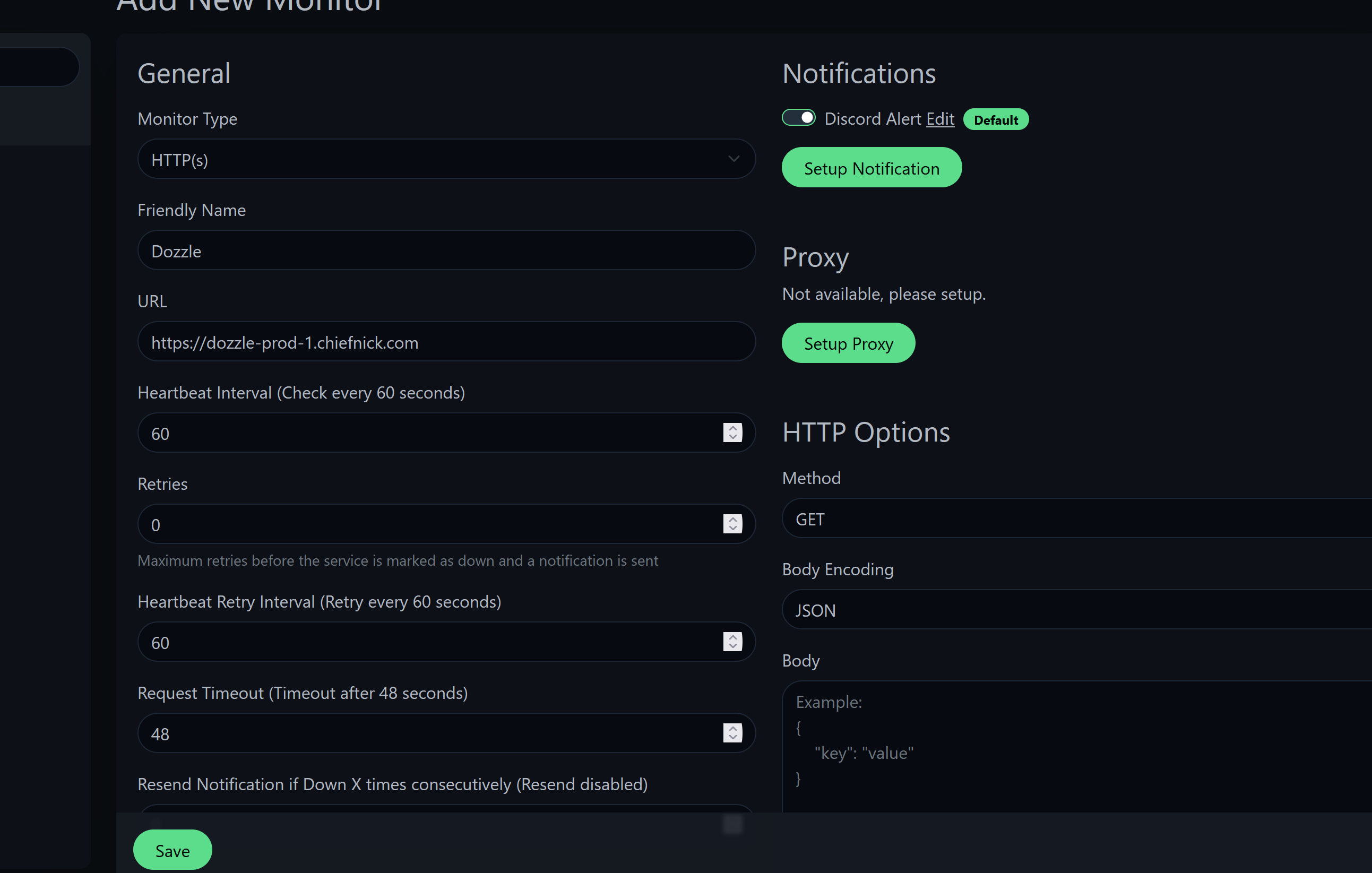
You are able to do much more in terms of customization, such as expected response codes, response times, and more. I suggest exploring the options to see what works best for you.
After creating the monitor, you can also put it on a status page. This is useful if you want to share the status of your services with others. You can create a status page by clicking the Status Pages tab and then clicking the New Status Page button.
Configuring Notifications Through Discord
On the dashboard, click the profile icon in the top right corner and select Settings. From there, click on the Notifications tab. Click on the Setup Notification button. You can configure notifications to be sent through a variety of services. For this tutorial, I will be setting up notifications through Discord, so I will select the Discord option.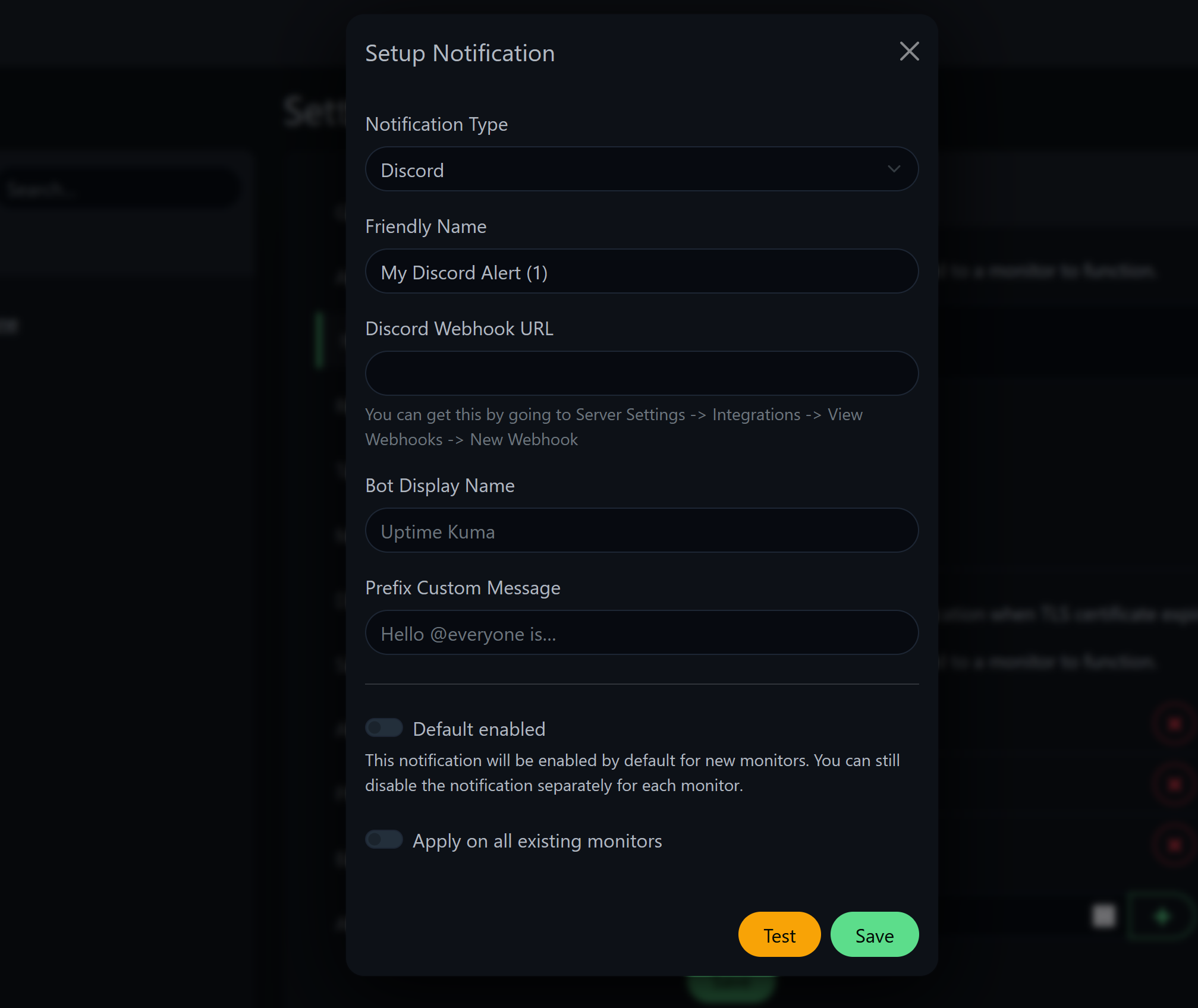
Webhook URL. This is where you will paste the webhook URL from your Discord server.
To get this, navigate to your Discord server and click on the channel you want notifications to be sent to. Click on the Edit Channel button and navigate to the Integrations tab. Click on the Create Webhook button and copy the URL.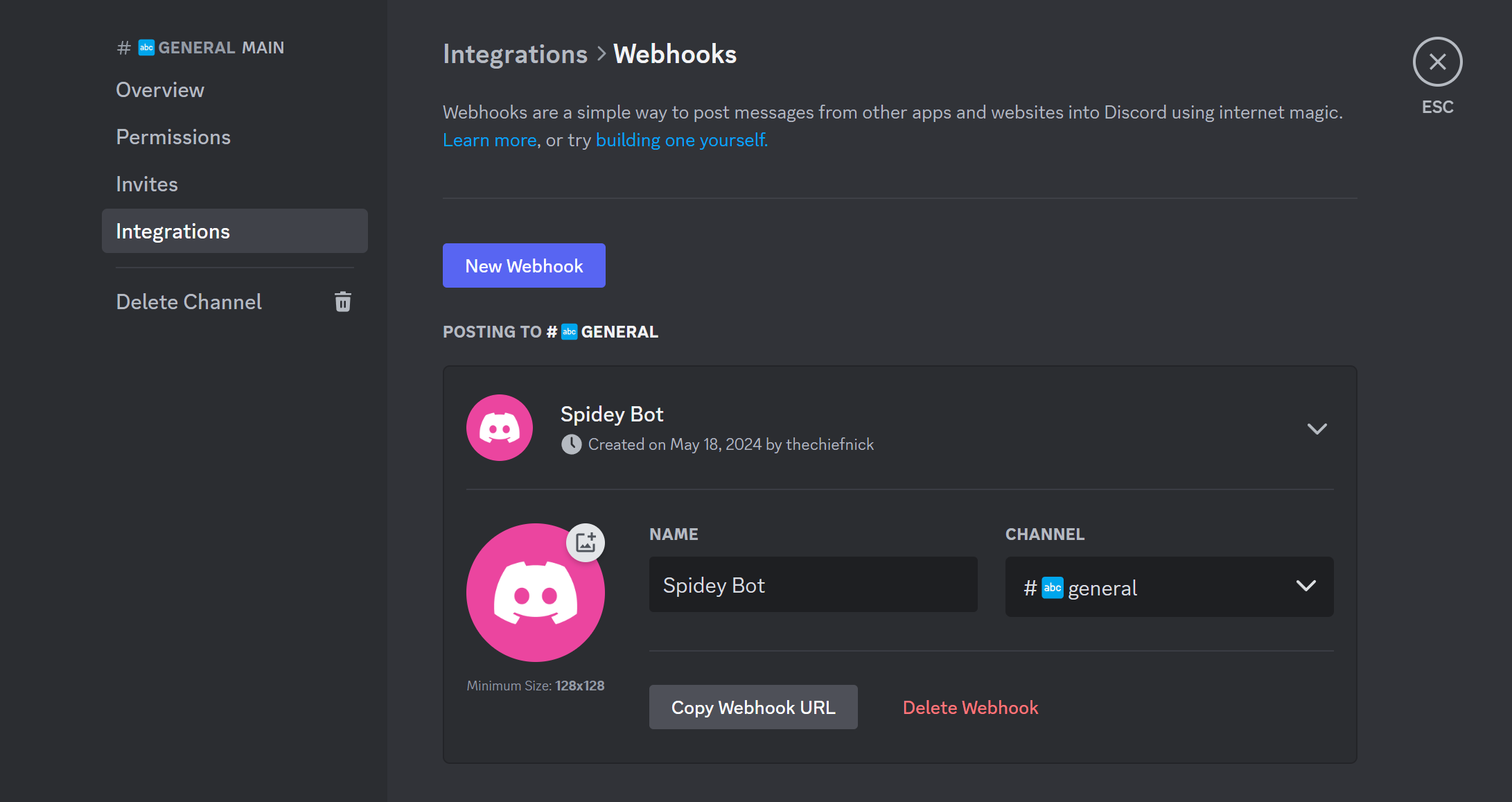
Webhook URL field in Uptime Kuma. You can also customize the message sent to Discord. For instance, if you’d like to annoy your friends by making them think they got a ping from their Discord kitten, you can @everyone in the message.
Before hitting the Save button, make sure to test the notification to ensure it’s working properly by clicking the Test button next to the Save button. Also, I recommend setting this as the default notification method by toggling the Default enabled switch.
Conclusion
Uptime Kuma is a great tool for monitoring the status of your Docker containers. It provides a clean and intuitive interface for tracking the uptime and response time of your services. With the ability to create monitors and status pages, as well as configure notifications, Uptime Kuma is a powerful tool for keeping an eye on your containers and ensuring that your services are running smoothly.
If you have any questions or run into any issues, feel free to reach out to me!